
Getting started with Claude desktop
Claude is an AI assistant from Anthropic. The desktop app can read and rename files on your computer. This guide gets you from download to your first finished task in about 15 minutes.
A simplified version of Anthropic's official guide. Last checked November 16, 2026. Claude's menus change often, so if a step doesn't match what you see, the official guide has the current version.
Set it up
1. Choose a plan
The Free plan is enough to try Claude and chat with it. To let Claude work with folders on your computer and take on longer tasks, you need a paid plan.
2. Install the app
Go to claude.com/download and download the version for your computer.
Open the app and sign in, or create an account.
3. Send your first message
Type into the message box at the bottom and press Enter. Write the way you'd brief a coworker: plain sentences, with the details they'd need. Under the message box you'll see which model is answering.
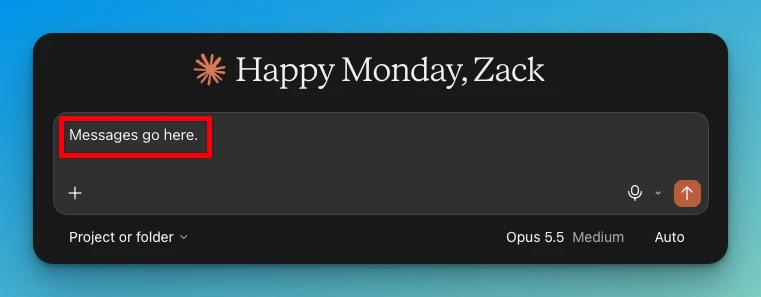
Click the model name to switch. Larger models use more of your plan's usage limit.
- Haiku: the fastest and lightest, for quick questions and short rewrites. Included on Free.
- Sonnet: a step up, for everyday work. Included on Free.
- Opus: the default on paid plans, and Anthropic's suggested starting point for most work.
- Fable: the most capable. Try it when Opus still falls short on a hard job. Access depends on your plan, and on some plans it uses usage credits.
Not sure what to ask? Try one of these, with your own details:
- "Here are my notes from today's meeting. Write a short follow-up email to the team with the action items and who owns each one."
- "This PDF is a supplier quote. Pull out each item, quantity, and price into a table I can paste into Excel."
- "This is a photo of a receipt. Tell me the date, vendor, and total."
4. Turn on memory
With memory on, Claude keeps details from your past chats, so you don't explain your job every time. Open Settings, then Your Claude, and make sure Generate memory from chats is on (in the older layout, it's Settings, then Memory). It starts on for personal plans. On a Team or Enterprise plan, your admin decides whether you can use it.
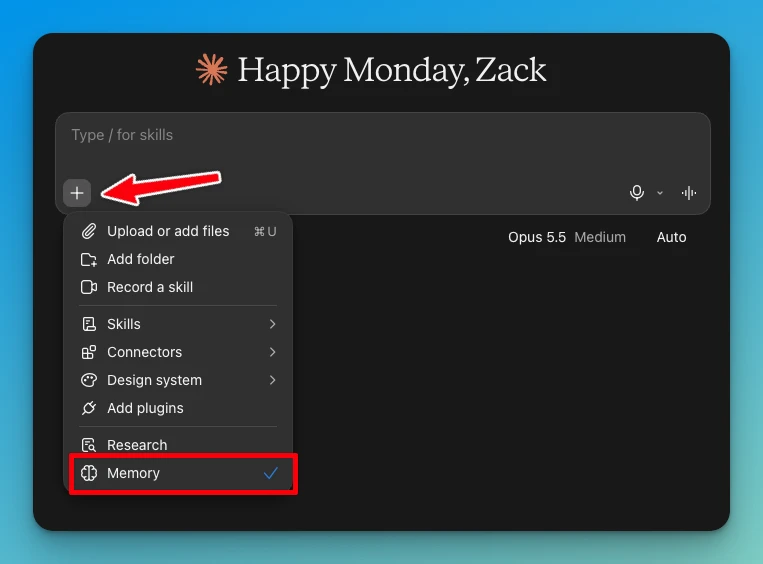
To see what Claude remembers, click Manage next to Your memory. You can edit or delete anything there, or tell Claude in a chat to remember or forget something. Anthropic's guide to memory.
5. Give it your files
For one or two files, drag them into the message box, or click + and upload them. This works on every plan.
On a paid plan, you can give Claude a whole folder on your computer, and it can read the files in it and make new ones. When Claude asks, choose the folder to share. Start with one folder for one job, like a copy of your receipts folder. Then try: "Rename each receipt to the date and vendor, and make a spreadsheet of the totals." Folders you've shared are listed under Trusted folders in Settings, where you can remove them.
Leave the desktop app open until Claude finishes working on your files.
6. Choose how much it asks first
When Claude takes actions on your computer, a setting in the message box decides how often it checks with you. Manual asks before each action. Auto lets routine steps run and blocks risky ones. Use Manual for your first few tasks so you can watch what it does, then switch to Auto when you're comfortable.
Either way, Claude asks before it permanently deletes a file.
7. Make a project for work you repeat
A project keeps the files and instructions for one kind of work together, like "Monthly reports" or "Client emails". Click Projects in the sidebar, then New project. Add the files Claude should always have (a price list or an email template) and a short set of instructions. Every chat inside the project starts with them.
8. Connect your other apps (optional)
Connectors let Claude read from tools like Google Drive, Gmail, Slack, or Notion, so you don't copy and paste between them. In a chat, click +, then Connectors, then Manage connectors. Or click Plugins in the sidebar and filter to connectors. Pick the app and sign in. Claude can only see what your own account can see. On a company plan, an admin may need to turn a connector on first.
Getting better answers
Copy this into the message box and fill in the brackets:
Goal: [what I want, in one sentence]
Context: [everything Claude needs]
If you need more context, ask me questions.
- Goal: what you want back, like a table or a three-line email, and who it's for.
- Context: attach the file or paste the email. Claude does better with the real thing than with a description of it.
The template comes from Ruben Hassid. His post Claude 101 goes further on the basics.
The first answer is a draft. Reply with what to change: "shorter", "more formal", "add a column for the due date". You don't need to start over.
Claude can get things wrong. Look over anything going to a customer before you send it.
Follow your company's rules on what you can share with AI tools. When in doubt, ask your manager or IT before uploading customer or employee records.
Anthropic's official guides
This page is the short version. For every option, and for anything that has changed since November 16, 2026, go to the source.
- Get started with Claude (opens in a new tab)
- Install Claude Desktop (opens in a new tab)
- Get started with Claude Cowork (opens in a new tab)
- Claude Cowork and chat are one Claude (opens in a new tab)
- Create and manage projects (opens in a new tab)
- Use connectors (opens in a new tab)
- Memory and chat search (opens in a new tab)
- Claude Help Center (everything else) (opens in a new tab)
See it on real office work
The video on the resources page shows Claude renaming a folder of PDFs and building a dashboard, with no code.
Watch the video